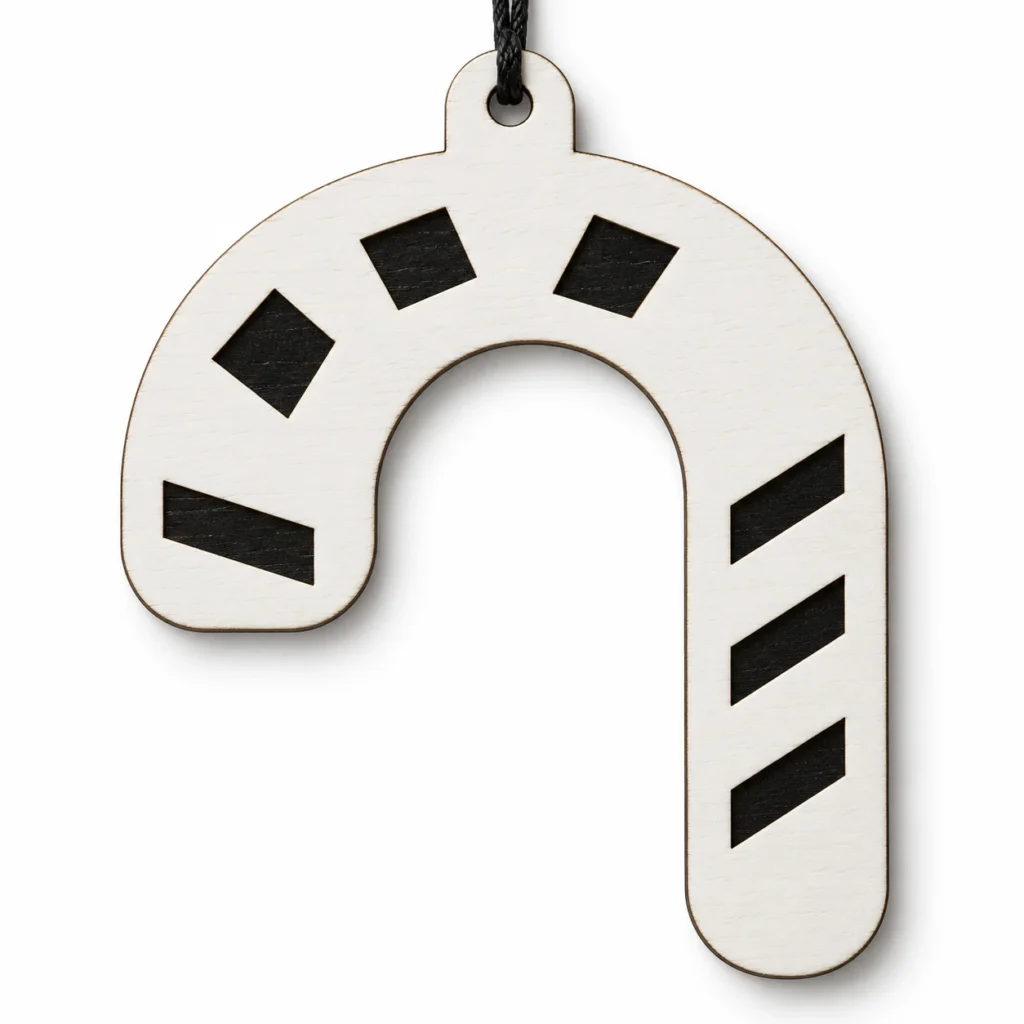
A festive curve with a rhythm of its own
A candy cane ornament SVG.
A little Christmas rhythm.
Peppermint Arc is an original candy cane ornament SVG for laser cutting and engraving. The design is a broad candy-cane silhouette with a rounded hook, long stem and integral top hanging tab. The ZIP download includes one scalable SVG and an English preparation guide. Original size: 100 × 120 mm overall, including the integrated hanging tab, with a 5 mm hanging hole.
One familiar curve.
Plenty of festive character.
Peppermint Arc gives the familiar candy cane a graphic, decorative presence. Its curved top and long stem bring a gentle rhythm to a Christmas branch, a wrapped gift or a small festive arrangement. Let the surface and engraved pattern carry the detail, and choose a finish that belongs with the rest of your handmade decorations.
The candy cane and integrated hanging tab form one connected flat shape. Decorative marks are engraved on the solid face. The download provides a decorative ornament pattern to prepare in your own supported cutting and engraving workflow.
The images illustrate a possible finished appearance. Physical ornaments, stock, cord and styling props are not included.
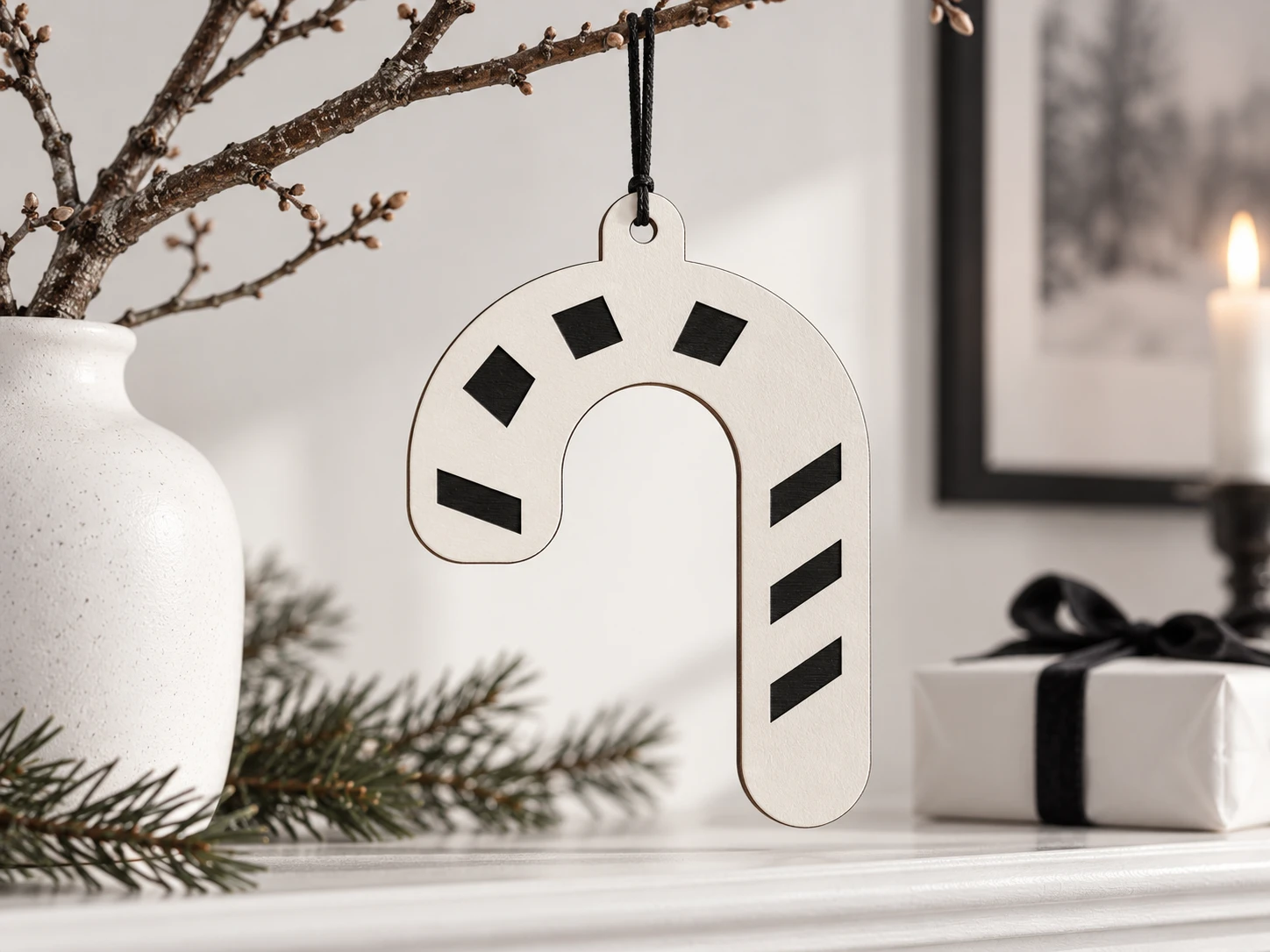
A connected shape.
A clear file to prepare.
| Included files | One scalable SVG vector file and one English README, packaged in a ZIP archive |
|---|---|
| Original dimensions | 100 × 120 mm overall, including the integrated hanging tab |
| Hanging hole | 5 mm diameter at the original size |
| Cut operations | 2 red (#FF0000), centered 0.025 mm closed contours: outer silhouette and hanging hole |
| Engrave operations | 7 black (#000000) filled paths: seven separate diagonal candy-stripe marks |
| File construction | Separate CUT and ENGRAVE groups; no fonts, linked images or embedded raster artwork |
| Construction | One connected flat ornament; interior artwork is engraved on its solid face |
| Product type | Digital download only; no finished ornament, cord, sheet stock or tools included |
| Product code | VD-PA-372 |
Confirm. Assign.
Test your own material.
-
Check the complete design
Extract the ZIP, import the SVG and verify its 100 × 120 mm overall dimensions and 5 mm hole before placing the artwork.
-
Separate the operations
Assign black filled artwork to engraving and the two red outlines to cutting. Engrave first, then cut the hanging hole before the outside silhouette.
-
Make a material sample
Inspect the curved top, stem, hanging tab and engraved pattern after import. Preserve a proportional scale, check the narrowest connections, and test your chosen stock before making the finished ornament.
This design has not been physically test-cut or test-engraved. No universal thickness, power, speed or pass count is supplied. Results depend on software, material, kerf and machine setup.
Your Christmas project.
The practical details.
What files will I receive?
You receive one original candy cane ornament SVG and an English README. The ZIP contains peppermint-arc-candy-cane.svg and README.txt. Extract the files before importing the SVG into supported software.
Are the decorative stripes cut out?
The interior decoration is engraved on solid material. Only the outside contour and hanging hole are cutting paths. Review the separate CUT and ENGRAVE groups after import, and assign each operation before previewing the job.
Is a physical ornament included?
No. You receive a digital SVG and English guide. You provide approved material, cord, equipment and any finish. Display images are illustrative; styling props are not supplied.
Can I resize this candy cane ornament SVG?
Yes. Scale the complete design proportionally. The hole, engraved marks and narrow connections also change size. Check the revised geometry and cord clearance, and make a new material sample.
How do I prepare the file for Glowforge, xTool or Epilog?
Glowforge: Upload the SVG in the Glowforge App. Check the dimensions and assign black filled artwork to Engrave and the red outlines to Cut. Review the job preview before processing.
xTool Studio/XCS: Import the SVG into software supported by your model. Studio’s SVG import DPI setting can affect scale. Verify the 100 × 120 mm outline and 5 mm hole, then assign engraving and cutting operations.
Epilog: Open the SVG in suitable vector software and use the driver or Dashboard workflow supported by your model. In Illustrator, retain centered 0.025 mm vector strokes. For CorelDRAW, follow your exact model’s hairline guidance. Review engraving and vector-cut separation in the job preview.
Other CO₂/diode systems: Where the controller is supported by LightBurn, import the SVG, assign red contours to Line/Cut and black shapes to Fill/Engrave, and check Preview. A laser source type alone does not establish software, controller or material compatibility.
Which materials should I choose?
Use laser-approved stock suited to your exact equipment and wavelength. Acrylic suitability depends on its colour, composition and laser source; clear acrylic and some colours are unsuitable for many diode workflows. Consult Glowforge material guidance or your manufacturer’s own material list. Never process PVC, vinyl, unknown coatings or prohibited stock. Follow ventilation and supervision instructions and test your chosen material.
Can I sell physical ornaments I make?
Yes. Personal projects and sales of finished physical items you make are permitted. Do not resell, share or redistribute the digital files or modified digital versions. See the README for usage terms.